
In today’s digital world, cloud storage isn't just a luxury—it's a necessity. Whether you’re a student, a freelancer, or a business owner, knowing how to use Google Drive efficiently can save you hours of work.
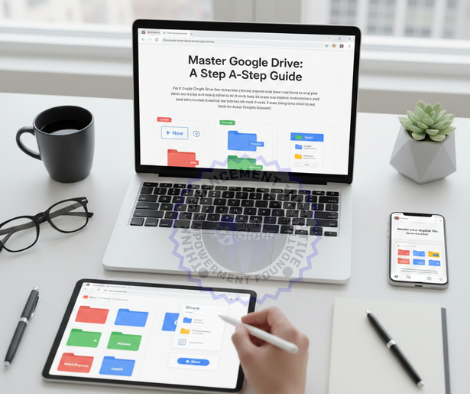
In this comprehensive guide, we’ll walk you through everything from opening your browser to collaborating with a team.
1. How to Create a File in Google Drive
Getting started is simple. You don't need fancy software; you just need a Google account and the Chrome browser.
Starting from Chrome
- Open Chrome: Launch the browser from your desktop.
- Access Drive: Type
drive.google.cominto the address bar. Alternatively, click the Google Apps (waffle) icon in the top-right corner of a new tab and select Drive. - The "+ New" Button: This is your command center. Click it to create Google Docs, Sheets, or Slides instantly.
Pro Tip: Want to save time? Type doc.new or sheet.new directly into your browser's address bar to bypass the Drive homepage and start working immediately.
2. Organizing for Productivity: Folders and Colors
A messy Drive is a slow Drive. To keep your digital workspace clean, you need a folder system.
Creating and Moving Folders
- Create: Click + New > New Folder. Give it a descriptive name like "Project Alpha" or "Tax Records 2026."
- Move: You can simply drag and drop files into folders. For more precision, right-click a file, select Organize, and then click Move.
Visual Organization with Color Coding
Did you know you can color-code your folders?
- Right-click your folder.
- Select Organize > Folder color.
- Choose a color (e.g., Red for "Urgent," Green for "Completed"). This visual cue helps you find what you need at a glance.
3. Collaborating: How to Share Folders Safely
One of the most powerful features of Google Drive is its collaboration tools. Sharing a folder allows a team to access multiple files at once.
Sharing Steps
- Right-click the folder you want to share and select Share.
- Add Emails: Enter the email addresses of your collaborators.
- Set Permissions: This is crucial for security.
Understanding Permissions: Viewer vs. Editor
Before you hit "Send," choose the right access level:
- Viewer: They can see but not touch. Perfect for final reports.
- Commenter: They can view and suggest changes without altering the original text.
- Editor: They have full control to add, change, or delete files.
Security Note: If you use the "Anyone with the link" option, remember that anyone who gets that link can access your data. Use this sparingly for public documents only.
Summary Checklist for Google Drive Success
- [ ] Use
drive.google.comfor easy access. - [ ] Use shortcuts like
doc.newfor speed. - [ ] Create folders for specific projects.
- [ ] Color-code folders for better visibility.
- [ ] Set sharing permissions carefully to protect your data.
Ready to take your digital organization to the next level?
If you found this guide helpful and want to support more content like this, feel free to show some love here.